

How to organize NotebookLM notebooks in 2026, Collections, pinning and folders
NotebookLM now groups notebooks into Collections and lets you pin one to the top. Here is how far that goes, and how to get a real folder tree.
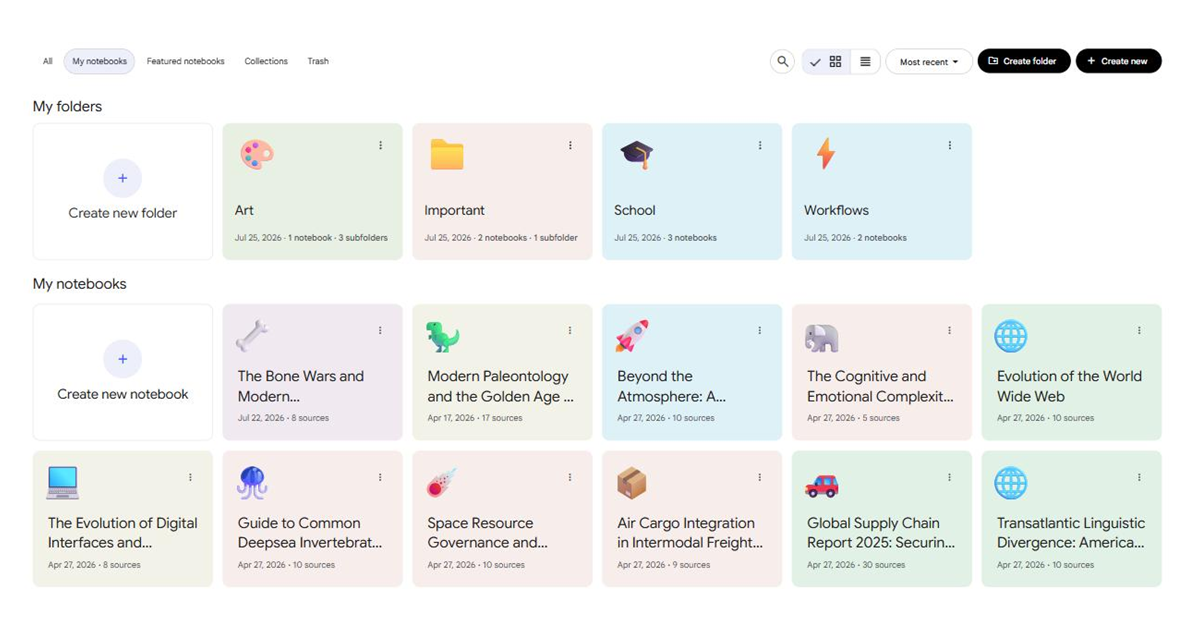
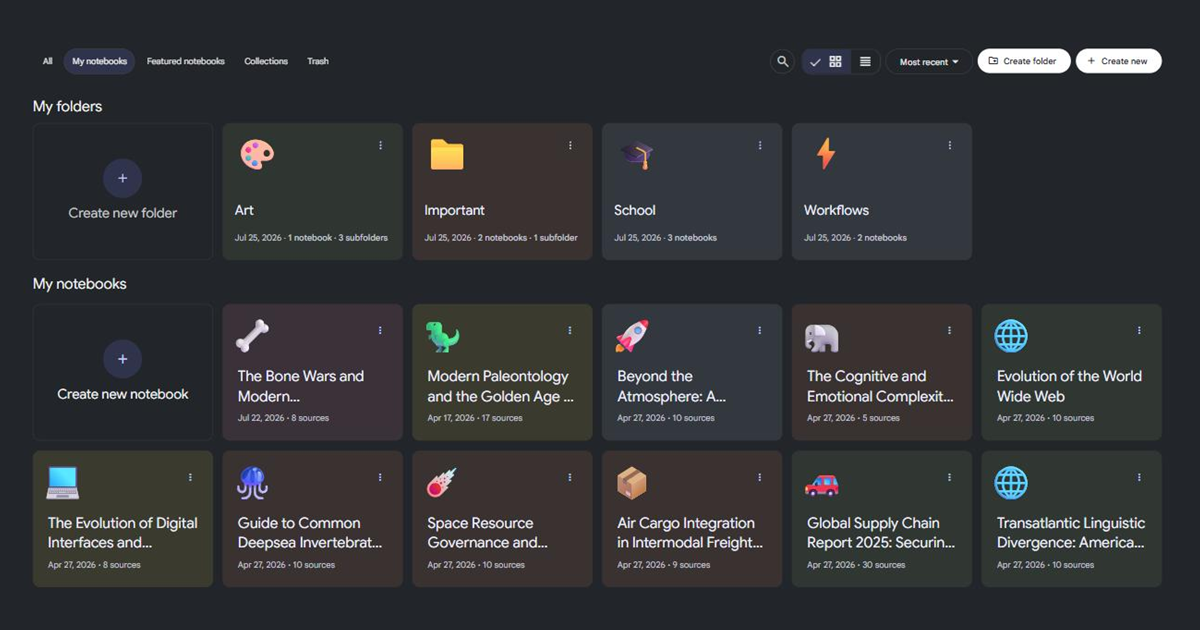
NotebookLM gives you four native ways to tidy the notebook list. You can group notebooks into Collections, pin one to the top, search by title, and sort by most recent or alphabetically. That is the whole set. There are no folders, no nesting, no tags, no colour coding, and no way to select several notebooks and act on them together. One notebook can sit in as many collections as you like, but the collections themselves are a flat, private list with no share option of their own.
If you have fifteen notebooks, that is plenty. If you have eighty, it runs out fast, and the rest of this guide is about where it runs out.
Wait, is it called NotebookLM or Gemini Notebook?
Both, for now. The product has been rebranded to Gemini Notebook, the header
says so, and notebooklm.google.com redirects to notebook.google.com. Nothing
about your notebooks changed in the move. Everyone still searches for it as
NotebookLM, so I am calling it that here, but if you followed a bookmark and
landed on a page with a different name at the top, that is why.
The organization controls described below are the ones on that home screen today, checked this month.
What NotebookLM gives you natively
| What you want to do | Native control | Where it lives |
|---|---|---|
| Group related notebooks | Collections | The Collections tab at the top |
| Keep one notebook at the top | Pin to top | The notebook's three-dot menu |
| Find a notebook by name | Search | The magnifying glass, top right |
| Reorder the whole list | Sort | Most recent, or Title |
| Fit more on screen | List view | The grid and list toggle |
| Rename a notebook | Edit title | The notebook's three-dot menu |
| Put a group inside a group | Nothing | Collections do not nest |
| Colour code a notebook | Nothing | Emoji only, no colours |
| Act on several notebooks at once | Nothing | No multi-select exists |
Two of those deserve a closer look, because the detail decides whether they solve your problem.
Search is title only. The placeholder in the box says it outright: "Search by notebook title". It does not look inside your sources, your notes or your chats. If you remember a phrase from a PDF but not what you called the notebook you put it in, search will not find it for you.
Sort has exactly two options, Most recent and Title. There is no sort by source count, by created date, or by anything you define. The list view does show a Created column alongside Title, Sources and Role, so you can at least read those values even though you cannot sort by them.
How to create a Collection
Collections landed in mid-2026 and are still rolling out account by account, so if you do not see the tab yet, it is on its way rather than missing.
- Open the Collections tab at the top of the home screen.
- Click Create collection.
- Give it a name. The name is required, nothing else is.
- Tick the notebooks you want in it from the checklist underneath. There is a search box above the list if you have a lot of them.
- Click Create.
The collection appears as a card showing its name and how many notebooks it holds. Its three-dot menu offers Edit, Delete and Add emoji, and that is the complete list, so an emoji is the only visual customisation a collection gets.
To file a notebook you already have, open its own three-dot menu and choose Add to collection. That opens a checklist of every collection, which is how you can tell the same notebook is allowed to live in several at once.
Where Collections stop
They are a good first pass and they are genuinely useful. Three limits are worth knowing before you reorganise everything around them.
They do not nest. A collection cannot contain another collection. If your work splits into clients, and each client splits into projects, you get one of those two levels, not both.
There is no bulk anything. Adding twenty notebooks to a collection means ticking twenty boxes in one dialog, which is fine. Moving fifteen of them somewhere else later means opening fifteen separate menus, which is not.
Deleting is still one notebook at a time, and it is permanent. There is no bin tab on the home screen and nothing in Settings that restores anything, so the confirmation dialog is the only thing standing between a misclick and a notebook you cannot get back.
How to put notebooks into folders
Folders are the thing people actually ask for, and they are the thing Google has not shipped. Superpower for NotebookLM adds them to the home screen: a My folders section above your notebooks, and a Create folder button sitting next to Google's own Create new.
A folder gets a name, a colour from nine presets, and an icon, either one of nine presets or any emoji you pick from a grid. The colours are defined as light and dark pairs, so a folder that reads well in the light theme still reads well when you switch.
Filing is drag and drop. Drag a notebook tile onto a folder and it goes in. Drag one folder onto another and it becomes a subfolder, nested as deep as ten levels.
A few behaviours that are easy to assume wrongly, so here they are stated:
- A notebook lives in exactly one folder. Filing it somewhere new removes it from wherever it was. This is the opposite of how Collections work, and it is the main reason to think of them as different tools rather than competing ones.
- Clicking a folder opens a window listing what is inside, rather than expanding the row in place. Open a subfolder from in there and it stacks, so you can walk back up.
- Deleting a folder never deletes notebooks. They reappear in the main list.
- Folders are always sorted alphabetically. There is no manual ordering.
- Search covers them. Typing in NotebookLM's own search box filters the folder tiles too, and a folder stays visible if its own name matches or if any notebook inside it matches.
Folders also follow the native grid and list toggle, so switching NotebookLM to list view switches them with it instead of leaving a grid stranded above a table.
What happens when you delete a notebook by mistake?
This is the gap I would fix first, and it is free in the extension. With the Trash feature on, deleting a notebook moves it to a bin instead of destroying it, and a Trash tab appears next to Google's own tabs. The notebook is never actually removed on Google's side until you delete it a second time from inside that tab, where the real confirmation runs and means it.
Trashing a notebook also pulls it out of any folder it was in, so restoring it later puts it back in the main list rather than somewhere you have forgotten.
Do folders and collections sync between my computers?
Differently, and the difference matters.
Collections are Google's, stored on your account, so they show up wherever you sign in.
Folders are the extension's, stored in your browser's local extension storage. That means they are tied to one browser profile on one machine by default. If you want them on a second computer, Drive Sync mirrors your folders through a private application folder in your own Google Drive, and it stays off until you turn it on.
Google Takeout is the other half of the answer for backups. It still lists NotebookLM as its own product, described as your notebooks, sources and generated content, so a Takeout archive covers the notebooks themselves. It does not cover how you arranged them, in either system. If you are in Takeout anyway, the Gemini side of it has a trap worth reading about first, which I covered in every way to export a Gemini chat.
Notebook folders or source folders, which one do I want?
Both exist, they are different features, and mixing them up is easy because they share a name.
Notebook folders group whole notebooks on the home screen. That is what this guide has been about.
Source folders group the sources inside a single notebook, in the left panel, also up to ten levels deep, stored per notebook. They are the answer to a notebook with sixty PDFs in one flat list. They also survive an export: when a notebook has source folders, the sources export bundles the ZIP into the same folder tree you built, which I covered in more detail in the guide on exporting a NotebookLM notebook.
Can I create folders in NotebookLM without an extension?
No. Collections are as close as the product gets, and they are a single flat level with no nesting. Every folder feature you will find for NotebookLM, including this one, is a browser extension drawing its own tree on top of Google's flat list.
Can one notebook be in two collections?
Yes. The Add to collection dialog is a checklist, not a picker, so a notebook can belong to as many collections as you tick. Folders work the other way round: one folder per notebook.
What can I organize for free?
The trash is free and uncapped, however many notebooks you put through it, and so is the search over your folders.
Folders themselves are capped on the free tier. The cap is on how many you have at once rather than how many you have ever made, so deleting one frees a slot straight away. Source folders have their own separate allowance, counted per notebook. Pro removes both.
Where should I start?
If your list is under twenty notebooks, use Collections and pin the two or three you open daily. That is genuinely enough, and it needs nothing installed.
Past that, the thing that starts hurting is not grouping but recovery and depth: one accidental Delete with no undo, and a client-then-project structure that a flat list cannot express. Those are the two the extension actually fixes.
Verified 2026.