

How to export a NotebookLM notebook in 2026, sources, chats and Studio artifacts
NotebookLM has no whole-notebook export. Here is what comes out natively, piece by piece, what has no export at all, and how to get the rest.
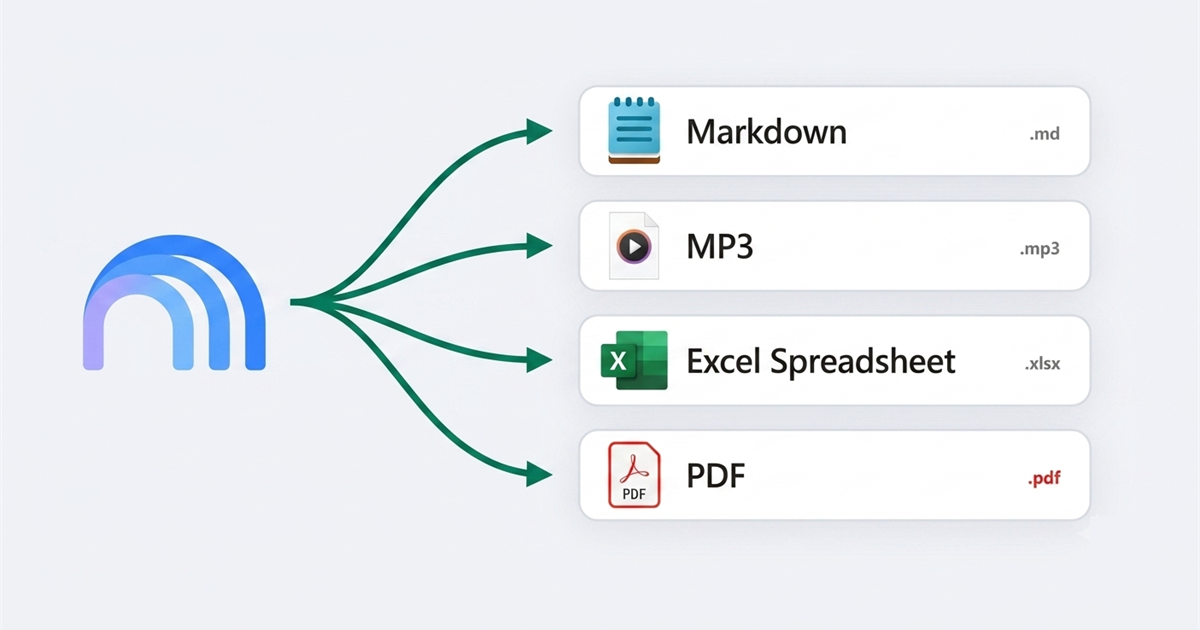
NotebookLM has no export button for a notebook. What it has is a set of per-piece exits, and between them they cover about half of what is on screen. Notes and reports go to Google Docs. Data tables inside a note go to Google Sheets. An Audio Overview downloads from its own player. The sources you uploaded have no download control at all, and the chat has no export at all. For one archive of everything there is Google Takeout, which exports your whole account rather than the notebook you are looking at.
That is the honest state of it, so the useful question is not "where is the export button" but "which piece am I actually trying to get out".
What NotebookLM exports natively
| Piece of the notebook | Native way out | What you get |
|---|---|---|
| A note or a report | Three-dot menu next to the note, Export to Docs | A new Google Doc in a new tab |
| A data table inside a note | Three-dot menu, Export to Sheets | A Google Sheet, one tab per table |
| An Audio Overview | Download icon in the audio player | An audio file you can keep |
| A source imported from Google Drive | Open the original in Drive | The real file, fully formatted |
| A source you uploaded or pasted | Nothing | No download control exists |
| The chat | Nothing | Select and copy, and that is it |
| Everything, account wide | Google Takeout | A ZIP of your whole NotebookLM data |
Two things about that table are worth saying plainly. The exports that do exist are one item at a time, so a notebook with a dozen notes is a dozen trips through the same menu. And the exported Doc or Sheet is a copy: edits there do not sync back, and sharing permissions do not carry over.
Other Studio artifact types have their own per-item menus, and which ones offer a download has changed several times over the past year, so check the artifact in front of you rather than trusting a list. One thing has stayed constant: whatever is available is per artifact, never for the panel as a whole.
Why the sources are the hard part
A source in NotebookLM is a parsed copy of your document, not the document. That one design decision explains most of the frustration.
If you imported from Google Drive, NotebookLM references the file rather than storing a duplicate, and it syncs when the original changes. Getting that source back means going to Drive and downloading it there, which works fine and is genuinely the right answer for those.
If you uploaded a PDF, pasted text, or added a website or a YouTube video, what NotebookLM holds is the extracted text. There is no button to hand it back to you. If you deleted the local copy of the PDF after uploading it, the formatted original is gone, and the parsed text inside the notebook is the only version left.
Is Google Takeout enough on its own?
Takeout is the official complete answer, and it is worth doing once a quarter regardless. Go to takeout.google.com, select the NotebookLM product, and you get a ZIP of your notebooks, notes and source content.
It has three properties that make it a backup rather than a workflow. It covers your whole account, so pulling one notebook means digging through everything. It arrives when Google has built it, not when you ask. And the source content comes out as parsed text in HTML files, not as the original PDFs and DOCX files you put in, for the same reason described above.
So Takeout answers "if my account vanished tomorrow, do I still have this". It does not answer "I need these fourteen sources as Markdown in my notes app in the next two minutes".
How to export every source at once
That second question is the one Superpower for NotebookLM exists to answer. It adds an Export sources button at the top of the Sources panel. It opens a single screen: a checklist of every source with all of them already ticked, a Format row under it, and an Export button. Nothing to page through.
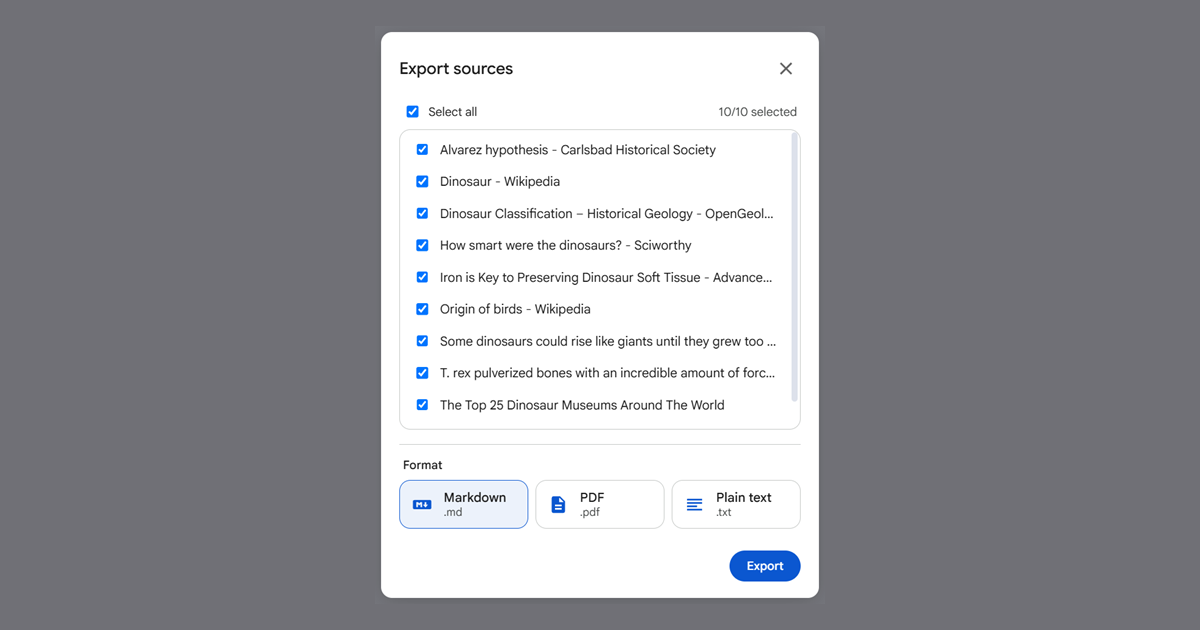
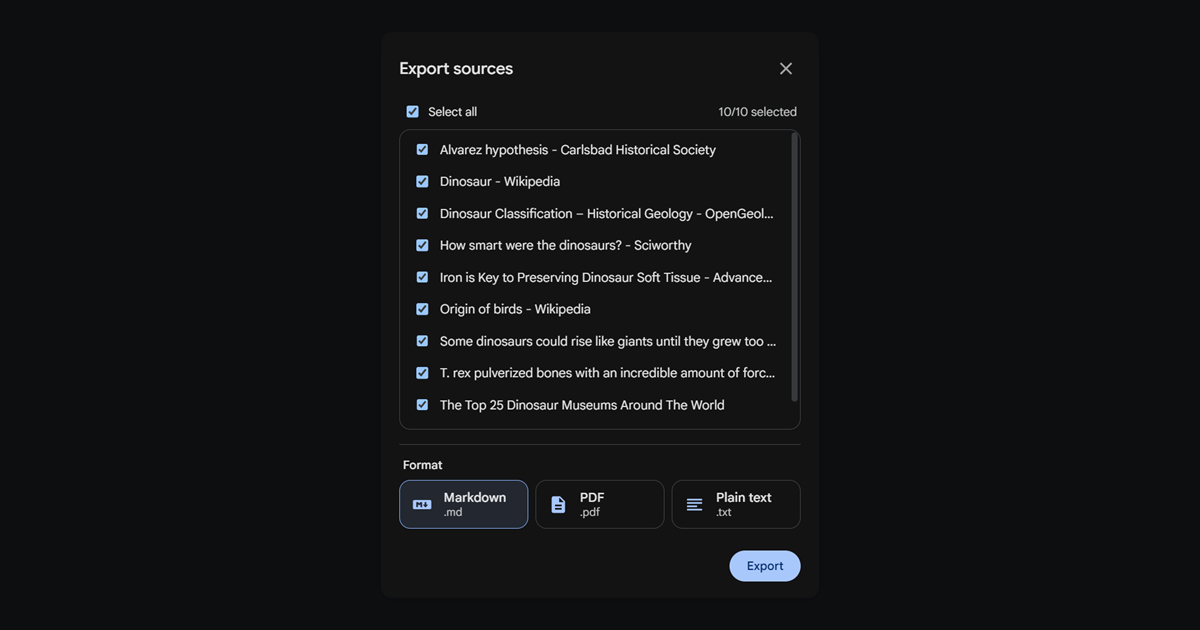
Three formats come out, and everything lands in one ZIP named after the notebook:
- Markdown, one
.mdper source - Plain text, one
.txtper source - PDF, one document per source
Those source folders are worth a sentence of their own, because the phrasing above could imply NotebookLM has them. It does not. Natively the Sources panel is one flat list, however many sources you add. The folder tree is another thing the extension adds, nested up to ten levels deep, with search, filter and bulk delete across it.
So if you have organised your sources into folders, a checkbox mirrors that structure inside the ZIP, and the folder tree you built in the notebook is the folder tree you get on disk. It is not reproducing anything Google gave you, it is putting your own structure back on the filesystem. Filename collisions are resolved per directory rather than globally, which matters when two folders both contain a source called "Notes".
One implementation detail worth knowing, because it decides whether an export is trustworthy. The source text is fetched through NotebookLM's own internal API calls, the same ones the page makes when you click a source. Nothing is scraped out of the page and nothing is opened one by one, so a notebook with fifty sources exports as fast as a notebook with five.
How to export a NotebookLM chat
Natively you cannot, as the table near the top says. Select and copy is the whole of it. The extension adds an export button to the chat header, with four options: Markdown, PDF, plain text, and copy the whole conversation to the clipboard.
The interesting part is what happens before the file is written. NotebookLM virtualises the chat, meaning only the messages near your viewport exist in the page at any moment. Everything above and below has been thrown away and gets rebuilt when you scroll back. A naive export would quietly save whatever was on screen and look completely fine. So the export scrolls the transcript from the top in steps, collecting messages as they appear, then restores your scroll position when it is done. Long conversations take a second or two, and that second is the difference between a full transcript and the last eight messages.
Assistant replies are converted from the rendered HTML, so headings, lists, tables and code blocks survive into Markdown rather than arriving as one wall of text.
How to export Studio artifacts in one ZIP
Whatever NotebookLM gives you here is per artifact, and it is uneven. A note or a report goes to Docs, a data table goes to Sheets, an Audio Overview downloads from its own player. Other types offer nothing, and which ones has changed more than once, so check the artifact in front of you. What has never existed is a way to take the panel as a whole.
The extension adds an Export studio button that does exactly that, using the same kind of picker, again one screen: the artifact checklist, and a single Text format choice under it. Everything comes back in one ZIP, one file per artifact, in a folder named after the notebook.
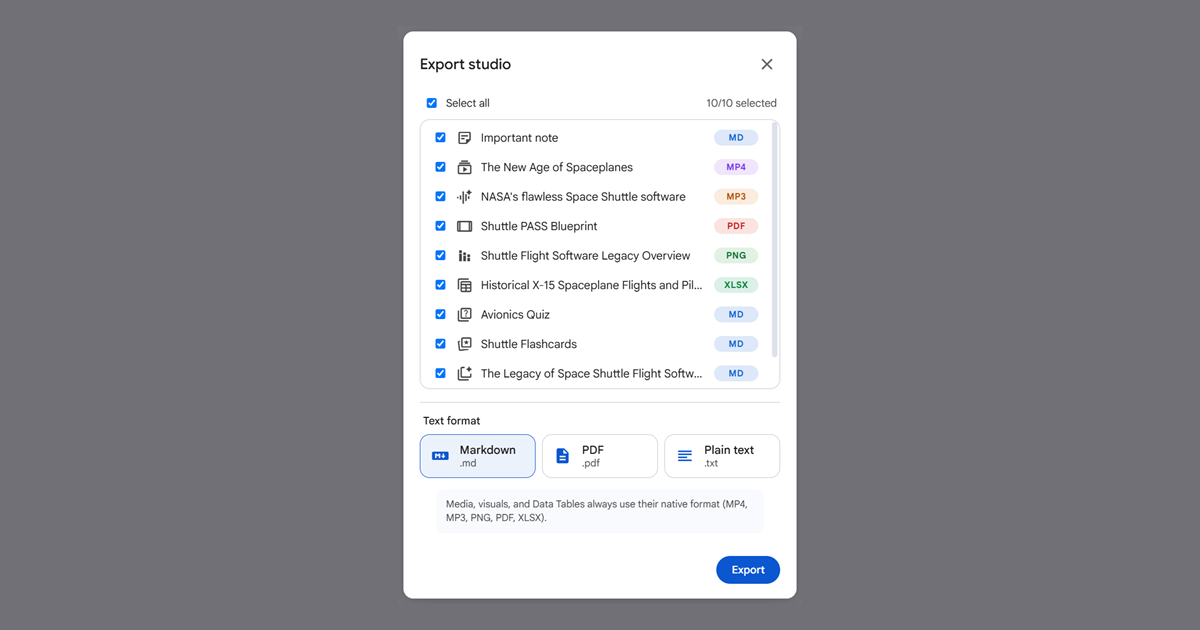
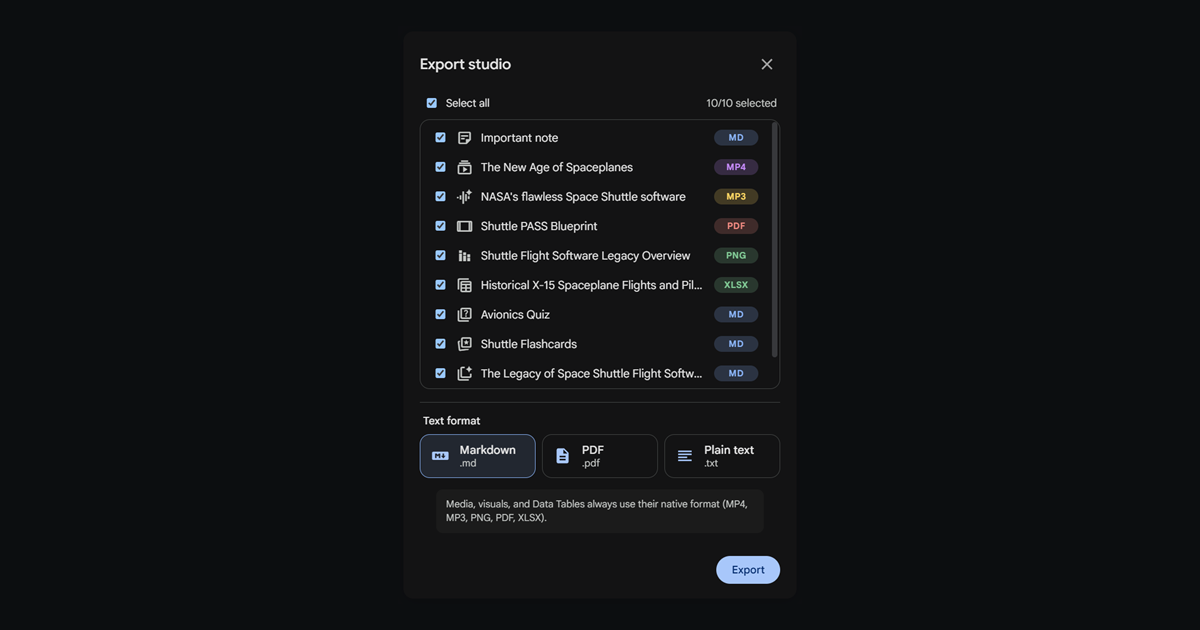
Media and visual artifacts ignore the format picker, because converting a video overview to Markdown is not a thing anyone wants:
| Artifact | Format in the ZIP |
|---|---|
| Notes | Markdown, PDF or plain text |
| Reports, study guides, briefings | Markdown, PDF or plain text |
| Flashcards and quizzes | Markdown, PDF or plain text |
| Mind maps | Markdown, PDF or plain text |
| Infographics | PNG |
| Slide decks | |
| Data tables | XLSX |
| Audio Overviews | MP3 |
| Video Overviews | MP4 |
Audio and video are the awkward case technically. Their URLs redirect to a CDN that refuses cross-origin reads, so the file cannot be fetched from the page itself. The extension's background worker fetches the bytes instead and passes them back in chunks, because a single message carrying a full video overview would exceed Chrome's message size ceiling. None of that is visible to you, but it is why the media files actually arrive rather than failing silently.
Can I download the original PDF I uploaded?
No, and no extension can change that. NotebookLM stores the parsed text, so the original binary is not there to hand back. Keep your own copies, or import from Drive instead of uploading, which leaves the real file somewhere you control.
Does exporting sources keep my folder structure?
Yes, and you do not have to ask for it. When the notebook has source folders, the picker grows an Include folder structure checkbox that is already ticked, and the ZIP mirrors those folders, nested as deep as you built them. Untick it and every source lands flat in one directory named after the notebook. A notebook with no folders never shows the checkbox, which is why you will not see it on a fresh notebook.
What can I export with the free extension?
These are the extension's limits, not Google's, and the Pro below is the extension's own upgrade rather than any Google subscription.
Sources Export is uncapped and always free, however many sources a notebook has. Chat export and Studio export are capped per day on the free tier, and the count resets overnight. Pro lifts both, along with the limits on folders, saved prompts and prompt chains.
Where should I start if I just want a backup?
Run Takeout once for the safety copy, then use the extension's Sources Export on the two or three notebooks you actually work in. Takeout is Google's and covers the disaster case. The per-notebook export is the extension's and covers the case where you want your research inside Obsidian or Notion this afternoon, which is the one that comes up weekly.
Verified 2026.